Introduction
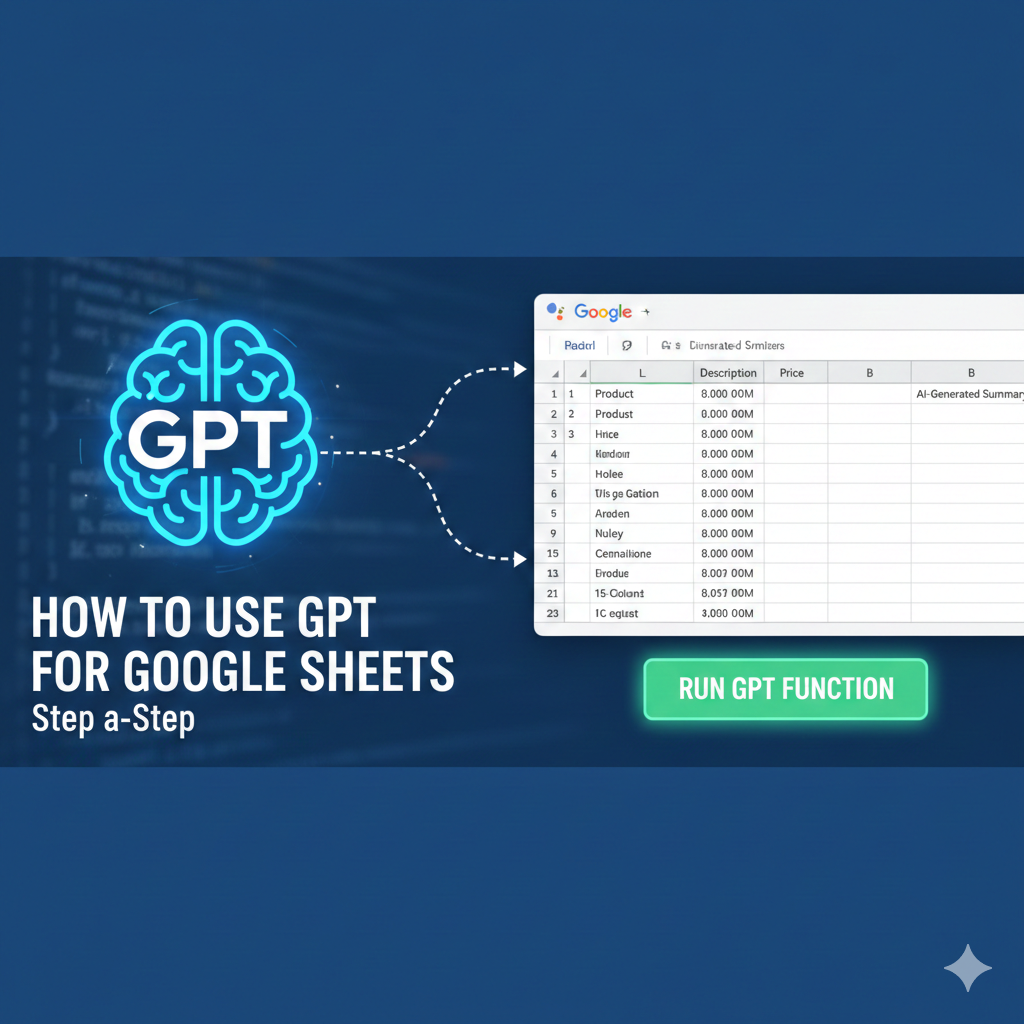
GPT for Google Sheets helps automate repetitive thinking tasks inside spreadsheets—when it’s used with clear boundaries. Many users install AI add-ons expecting instant automation, only to get inconsistent results or broken formulas. The truth is simpler: GPT works best in Sheets when it supports decision-making, not when it replaces spreadsheet logic.
From practical usage, teams increasingly rely on Sheets for SEO reporting, research tracking, and content planning. Adding GPT into this environment can save hours—but only if you understand what it can and cannot do. This guide walks through setup, real use cases, common mistakes, and workflows that actually hold up in daily work.
What GPT for Google Sheets actually does
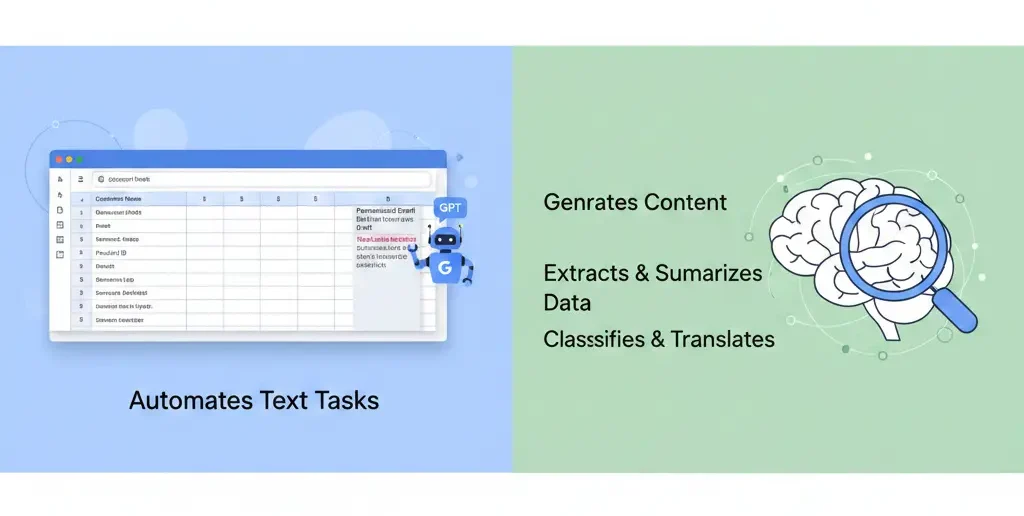
GPT for Sheets is not a replacement for formulas or scripts. Instead, it acts as a text and logic assistant inside cells.
It’s useful for:
Generating structured text (summaries, labels, explanations)
Reformatting or classifying data
Assisting research interpretation
It struggles with:
Precise calculations
Real-time data
Long chained logic without review
Understanding this boundary prevents most frustrations.
Setting up GPT for Google Sheets
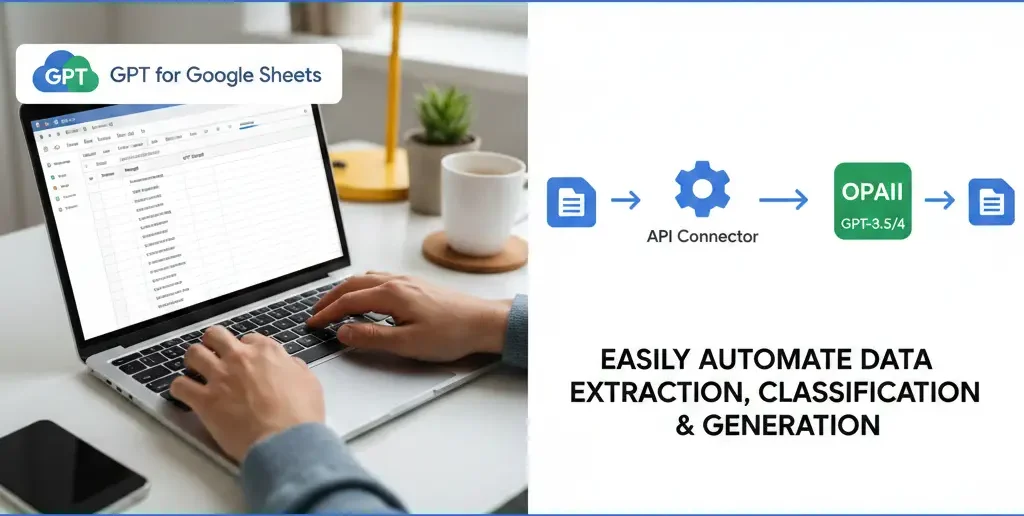
Most GPT integrations follow a similar setup pattern:
Install the add-on from Google Workspace Marketplace
Connect an API key or account
Grant sheet-level permissions
Once installed, GPT functions usually appear as:
Custom formulas (e.g., =GPT())
Sidebar prompts
Menu actions
Beginner mistake: skipping permission review.
Fix: only enable GPT access on sheets that don’t contain sensitive data.
Basic GPT formula usage (with examples)
Here’s a simplified example structure:
| Input Cell | Prompt Logic | Output | |
| A2 | — | ||
| B2 | Raw keyword list | =GPT(“Group these keywords by intent: “&A2) | Intent labels |
This works because GPT is handling classification, not computation.
[Expert Warning]
Never rely on GPT formulas for calculations that require numeric accuracy. Use standard Sheets formulas first, then ask GPT to interpret results.
Practical use cases that actually work
https://www.youtube.com/watch?
Use case 1: Research interpretation
GPT excels at summarizing patterns in messy datasets.
Example prompt:
“Summarize the main themes in this list of keywords and explain what users are likely trying to achieve.”
Use case 2: Labeling & categorization
Perfect for tagging content status, intent, or topic groups.
Use case 3: Draft explanations for reports
GPT can explain why numbers changed—but not calculate them.
Common mistakes (and how to fix them
Mistake 1: Using GPT instead of formulas
Fix: Let Sheets calculate, let GPT explain.
Mistake 2: Long prompts inside cells
Fix: Reference cells to keep prompts clean.
Mistake 3: No validation step
Fix: Always sanity-check outputs before sharing.
Information Gain: The risk most tutorials ignore
Most guides skip this real:ity
GPT outputs can drift over time—even with the same prompt.
From real usage, repeated runs may phrase answers differently. This is fine for drafts—but risky for reports.
Solution:
Lock finalized outputs as values once reviewed.
Unique section — Practical insight from experience
In real reporting workflows, the best setup is hybrid:
Sheets formulas → calculations
GPT → interpretation & labeling
Human → final approval
Teams that skip the human step often lose trust in the data, even if time is saved initially.
Internal linking strategy (planned)
Anchor: “AI workflow for keyword research” → AI Workflow for Keyword Research & Clustering
Anchor: “SEO reporting automation” → Automating SEO Reports in Sheets Using AI
Anchor: “GPT formula examples” → GPT for Sheets Formula Examples
(FAQs)
Is GPT for Google Sheets free?
Most versions require an API key or paid plan.
Can GPT replace formulas?
No. It complements them.
Is GPT safe for client data?
Only if permissions and usage are controlled.
Why does output change slightly each time?
Because AI responses are probabilistic.
Can GPT pull live data?
No. It only uses provided inputs.
Should GPT outputs be stored permanently?
Only after review and validation.
Conclusion
Learning how to use GPT for Google Sheets effectively means understanding its limits as much as its strengths. From real experience, GPT works best as an assistant that explains, groups, and drafts—while Sheets handles logic and accuracy.
Used this way, GPT becomes a reliable productivity boost instead of a source of confusion