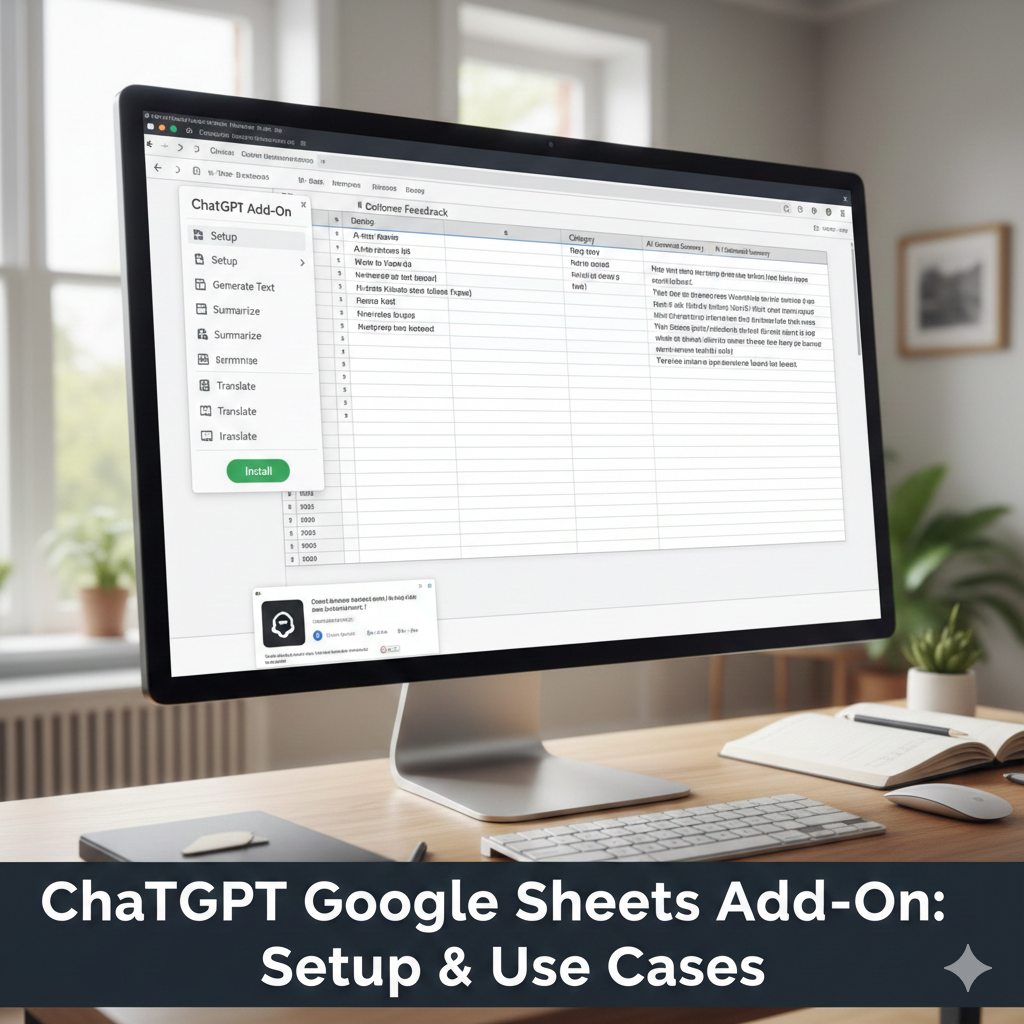
Introduction
The ChatGPT Google Sheets add-on has made AI accessible directly inside spreadsheets—but accessibility doesn’t equal effectiveness. Many users install the add-on expecting instant automation, only to find inconsistent outputs, permission confusion, or workflows that don’t scale.
In real teams, Sheets is still the backbone for SEO tracking, research logs, content planning, and reporting. The add-on can save time, but only when it’s used intentionally and within clear limits. From practical experience, the difference between “useful assistant” and “spreadsheet chaos” usually comes down to setup discipline and realistic expectations.
This guide explains how the ChatGPT Google Sheets add-on actually works, how to use it safely, and where it should not be used—so you can decide if it belongs in your workflow.
What the ChatGPT Google Sheets add-on actually does
At its core, the add-on lets you send cell content to an AI model and receive text-based output back into the sheet.
It is good at:
Summarizing text
Classifying or labeling rows
Rewriting or standardizing content
Explaining patterns in data
It is not designed for:
Accurate calculations
Live data fetching
Complex logic chains
Replacing spreadsheet formulas
Understanding this boundary prevents most frustration.
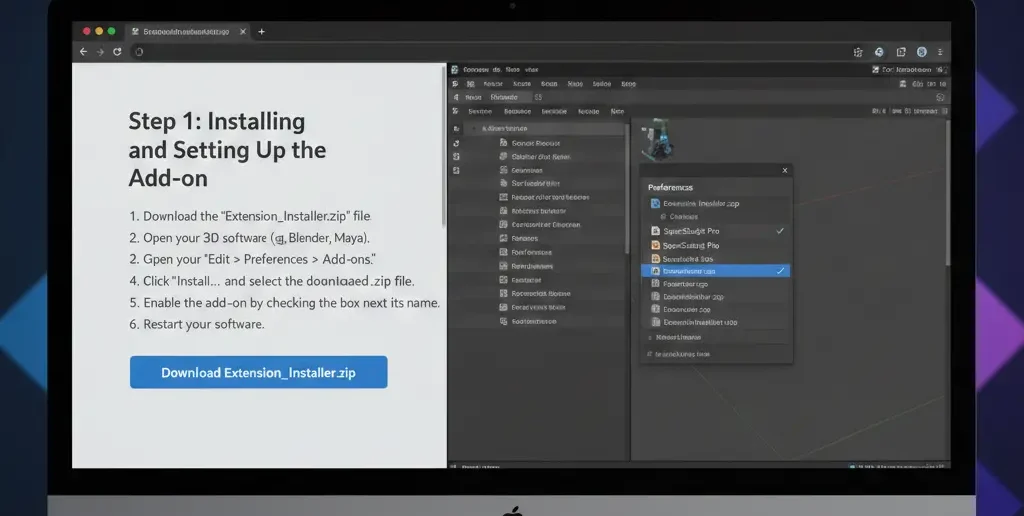
Step 1: Installing and setting up the add-on
Typical setup flow
Install the add-on from Google Workspace Marketplace
Connect your account or API key
Approve sheet-level permissions
Access features via menu, sidebar, or custom functions
Common setup mistake
Granting access to sensitive or client-confidential sheets.
Fix:
Create a duplicate “AI workspace” sheet and keep raw data separate.
Step 2: How the add-on interacts with your data
Unlike traditional formulas, the add-on:
Sends prompts externally for processing
Returns text responses asynchronously
May produce slightly different phrasing each run
This makes it unsuitable for deterministic workflows but useful for analysis and interpretation.
Practical use cases that hold up in real workflows
Use case 1: SEO keyword intent labeling
Instead of manually tagging hundreds of keywords, the add-on can suggest intent categories for review.
Use case 2: Research notes summarization
Paste messy notes or SERP observations and generate clean summaries.
Use case 3: Report explanations
Explain why metrics changed without touching the calculations themselves.
[Expert Warning]
Do not let the add-on overwrite raw data. Always output AI responses into a separate column.
Example: Safe add-on usage table
| Task | Add-On Role | Risk Level |
| Intent tagging | Classification | Low |
| Topic grouping | Organization | Low |
| Numeric calculation | Math | High |
| Forecasting | Prediction | High |
| Report commentary | Explanation | Low |
This separation keeps your sheets reliable.
Common mistakes users make with the add-on
Mistake 1: Treating it like a formula engine
Fix: Use native formulas for logic, AI for interpretation.
Mistake 2: Running it across entire sheets at once
Fix: Test on small ranges first.
Mistake 3: No review process
Fix: Add a “Reviewed” or “Approved” column.
Information Gain: The limitation most tutorials skip
Here’s a critical detail often ignored:
The ChatGPT Google Sheets add-on does not understand spreadsheet context unless you provide it.
If you only send one cell, it doesn’t “see” related columns unless you include them in the prompt. This is why outputs sometimes feel disconnected.
Context-aware prompt example
“Using the keyword in column A and the page type in column B, suggest the most likely search intent.”
Explicit context improves relevance dramatically.
Unique section — Real-world scenario
In a real SEO reporting setup, a team used the add-on to auto-explain traffic drops. Early results looked polished—but explanations contradicted actual data trends.
The fix wasn’t removing AI. It was narrowing prompts and requiring human validation before reports were shared. Trust returned once AI outputs were treated as draft commentary, not conclusions.

(FAQs)
Is the ChatGPT Google Sheets add-on free?
Some versions require paid plans or API usage.
Can it access live Google data?
No. It only processes provided inputs.
Is it safe for client work?
Yes, with strict permission control.
Why does output vary?
AI responses are probabilistic.
Can it replace scripts?
No. Scripts handle logic; AI handles language.
Should outputs be stored permanently?
Only after review and approval.
Conclusion
The ChatGPT Google Sheets add-on is most valuable when it’s used as a language and analysis assistant, not as a replacement for spreadsheet logic. From real experience, teams that define boundaries—what AI can do and what it cannot—see consistent time savings without sacrificing trust.
Use it to interpret, summarize, and organize. Keep humans responsible for decisions.\
Internal link
External link
https://workspace.google.com/marketplace/app/gpt_for_sheets_docs_forms_slides/466607203252?