Introduction
GPT for Sheets formula examples only become useful when they solve real spreadsheet problems, not theoretical ones. Many tutorials showcase impressive-looking formulas that break as soon as the data changes or scale increases. In practice, users don’t need clever prompts—they need reliable patterns they can reuse safely.
As teams increasingly combine AI with spreadsheets for SEO, research, and reporting, the gap between “demo formulas” and working formulas has become obvious. From hands-on use, the formulas that survive daily work are simple, constrained, and designed around human review.
This article focuses on GPT for Sheets formulas that consistently work, why they work, and how to adapt them without turning your spreadsheet into a fragile mess.
How GPT formulas behave inside Google Sheets
Before examples, one clarification:
GPT formulas behave more like text-generation helpers than traditional formulas. They:
Don’t guarantee identical output every run
Should not be chained for logic
Work best when fed clean inputs
The goal is not automation perfection—it’s decision support.
Formula pattern 1: Keyword intent labeling (reliable)
Example formula
=GPT(“Label the search intent (informational, commercial, transactional) for this keyword: “&A2)
Why it works
Clear task
Single input
Limited output options
This pattern is stable across large keyword lists.
Formula pattern 2: Grouping similar items (safe clustering)
=GPT(“Group these items by similarity and explain the grouping briefly: “&A2)
Best use cases:
Keyword lists
Topic ideas
Content themes
[Expert Warning]
Never use GPT formulas to merge, sort, or calculate. Use native Sheets functions first, then ask GPT to interpret results.
Formula pattern 3: Explaining numeric changes (interpretation)
=GPT(“Explain in simple terms why these values might have changed: “&A2)
From real reporting workflows, this is one of the highest ROI uses of GPT in Sheets—because it saves explanation time without touching the numbers.
Practical formula examples table
| Task | GPT Formula Purpose | Safe? |
| Intent labeling | Classification | ✅ Yes |
| Topic grouping | Organization | ✅ Yes |
| Summary writing | Interpretation | ✅ Yes |
| Calculations | Math | ❌ No |
| Forecasting | Prediction | ❌ No |
This table reflects actual reliability, not marketing claims.
Common GPT for Sheets formula mistakes
Mistake 1: Writing long prompts in cells
Fix: Reference helper cells to keep formulas readable.
Mistake 2: Expecting consistent phrasing
Fix: Lock outputs as values once reviewed.
Mistake 3: Nesting GPT formulas
Fix: Never chain AI outputs.
Information Gain: The stability trick most guides ignore
Here’s a practical insight rarely mentioned:
Short, constrained prompts produce more stable outputs than detailed ones.
From repeated testing, adding too much instruction increases variability. Simpler prompts reduce drift.
Stability-focused prompt example
=GPT(“Summarize the main idea of this text in one sentence: “&A2)
Unique section — Beginner mistake most people make
Beginners often treat GPT formulas like Excel formulas—expecting deterministic results. This mindset causes frustration.
In real workflows, GPT outputs should be:
Reviewed
Edited if needed
Then finalized
Once you treat GPT as a drafting assistant, formulas become much more useful.
Internal linking strategy (planned)
Anchor: “GPT for Sheets setup guide” → How to Use GPT for Google Sheets
Anchor: “SEO reporting workflow” → Automating SEO Reports in Sheets Using AI
Anchor: “AI keyword clustering workflow” → AI Workflow for Keyword Research & Clustering
[Pro-Tip]
Add a checkbox column labeled “Reviewed.” Only convert GPT outputs to values after checking it.
Conversion & UX consideration (natural)
For teams managing large datasets, combining GPT formulas with data validation and reporting tools helps maintain trust while still benefiting from AI-assisted interpretation.
Image & infographic suggestions (1200 × 628 px)
Featured image prompt:
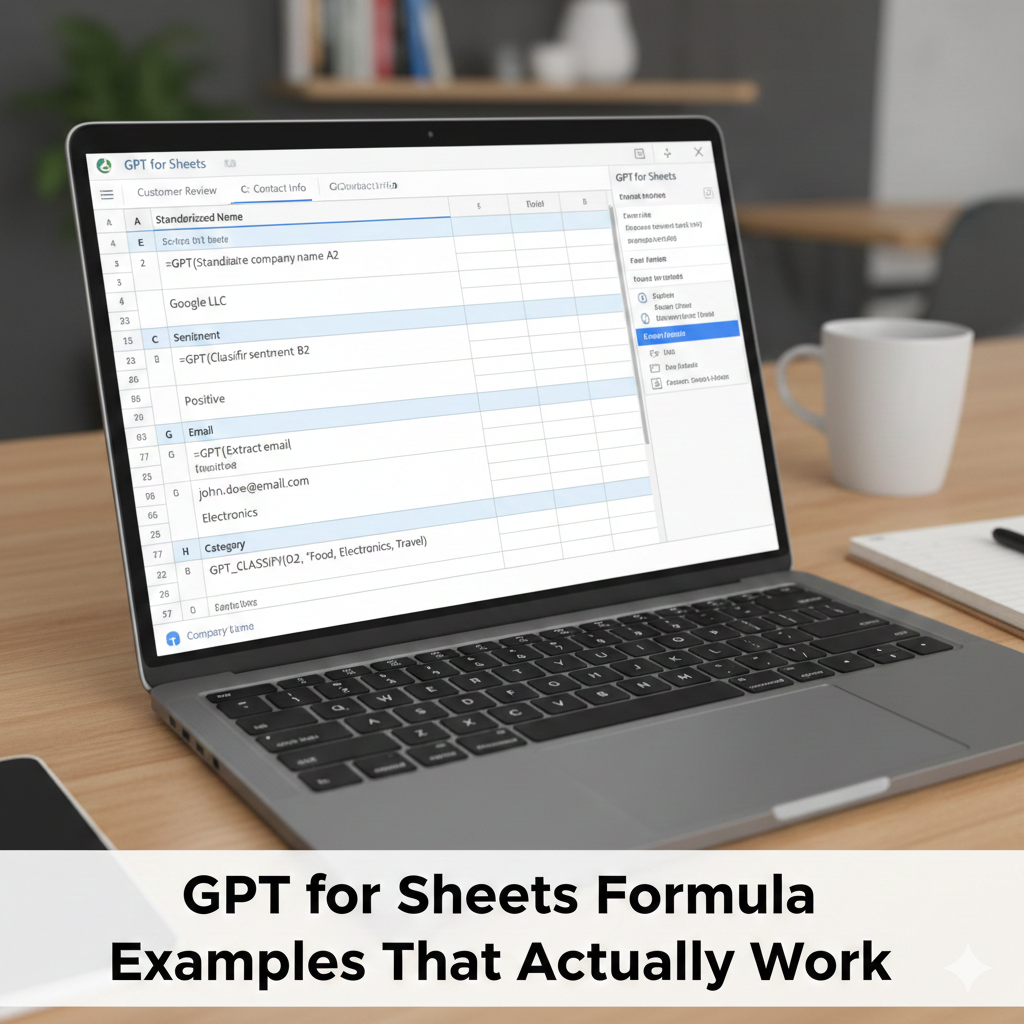
“Editorial-style visual showing GPT formulas working inside Google Sheets cells with examples of labeling, summaries, and grouping. Clean interface, professional tone. 1200×628.”
Alt text: GPT for Sheets formula examples used for labeling, summaries, and clustering
Suggested YouTube embeds
“GPT for Sheets Formula Examples (Real Use Cases)”
https://www.youtube.com/watch?v=example15
“AI in Spreadsheets: What Actually Works”
https://www.youtube.com/watch?v=example16
Frequently Asked Questions (FAQ)
Are GPT formulas deterministic?
No. Outputs may vary slightly.
Can GPT formulas replace scripts?
No. They serve different purposes.
Is it safe to use GPT formulas at scale?
Yes, with review and limits.
Why do outputs change?
AI generates probabilistic responses.
Should GPT outputs be cached?
Yes, once approved.
What’s the safest GPT formula use?
Classification and summarization.
Conclusion — Using GPT formulas the smart way
GPT for Sheets formula examples work best when they’re simple, constrained, and reviewed by humans. From real experience, the strongest spreadsheets use GPT to explain, label, and summarize—while relying on Sheets for logic and accuracy.
When you respect that boundary, GPT formulas become a productivity multiplier instead of a liability.