Introduction
GPT for Sheets formula examples only become truly valuable when they solve everyday spreadsheet problems — not when they look impressive in a demo. Across tutorials and blog posts, most examples focus on flashy prompts that appear powerful but quickly fall apart once real data is introduced. As soon as rows increase, inputs vary, or workflows grow more complex, those formulas become unreliable, inconsistent, or outright unusable.
In real-world spreadsheet use — especially for SEO research, content planning, analytics reporting, and operations — users don’t need clever tricks. They need repeatable, stable patterns that can handle messy data and human review without breaking. The difference between “cool AI experiments” and productive AI-assisted spreadsheets lies in understanding what GPT formulas are good at — and just as importantly, what they should never be used for.
As teams increasingly blend AI tools with Google Sheets to speed up research, summarize data, classify information, and generate insights, a clear gap has emerged between theoretical automation and practical workflows. Many formulas promise full automation: AI-driven forecasting, calculations, complex logic chains, or self-updating systems. In practice, these approaches often create fragile spreadsheets that are hard to debug, impossible to trust, and risky for decision-making.
How GPT formulas behave inside Google Sheets
Before examples, one clarification:
GPT formulas behave more like text-generation helpers than traditional formulas. They:
Don’t guarantee identical output every run
Should not be chained for logic
Work best when fed clean inputs
The goal is not automation perfection—it’s decision support.
Formula pattern 1: Keyword intent labeling (reliable)
Example formula
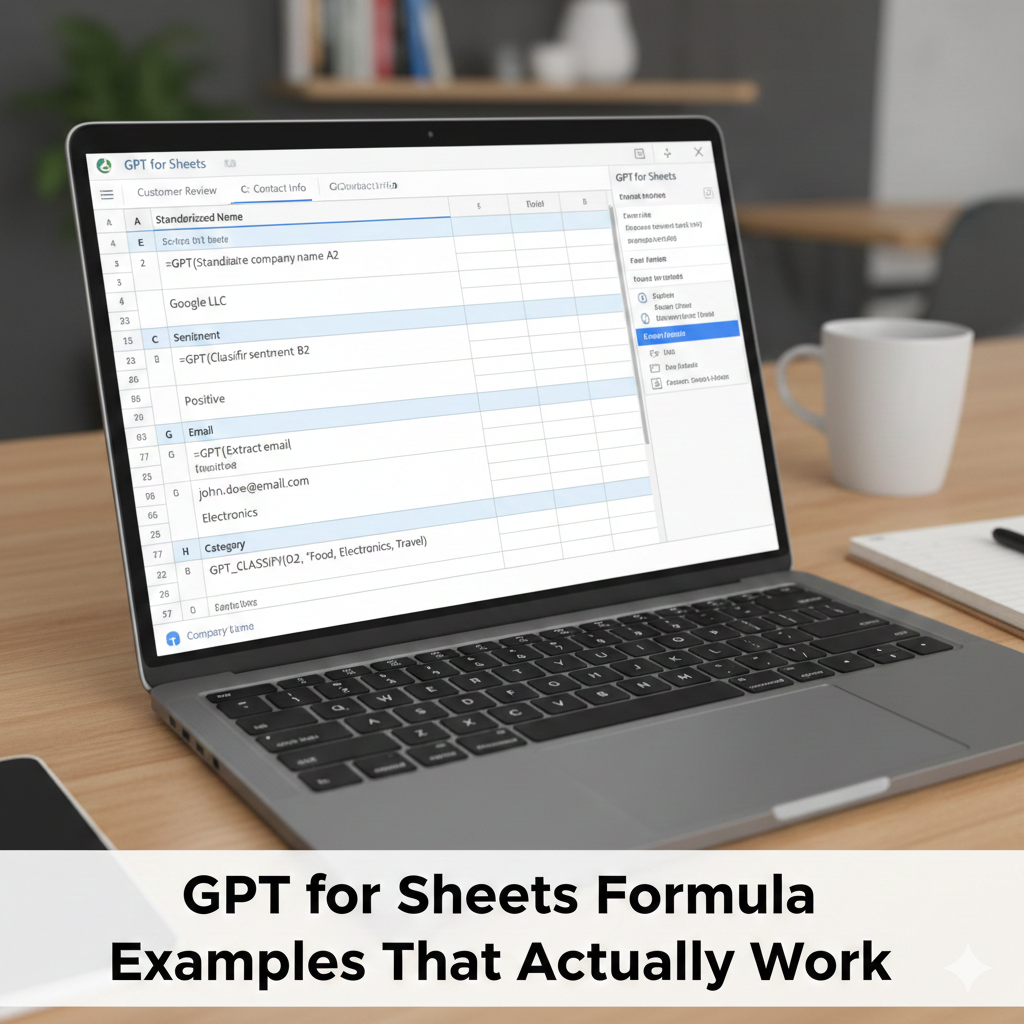
=GPT(“Label the search intent (informational, commercial, transactional) for this keyword: “&A2)
Why it works
Clear task
Single input
Limited output options
This pattern is stable across large keyword lists.
Formula pattern 2: Grouping similar items (safe clustering)
=GPT(“Group these items by similarity and explain the grouping briefly: “&A2)
Best use cases:
Keyword list
Topic ideas
Content themes
[Expert Warning]
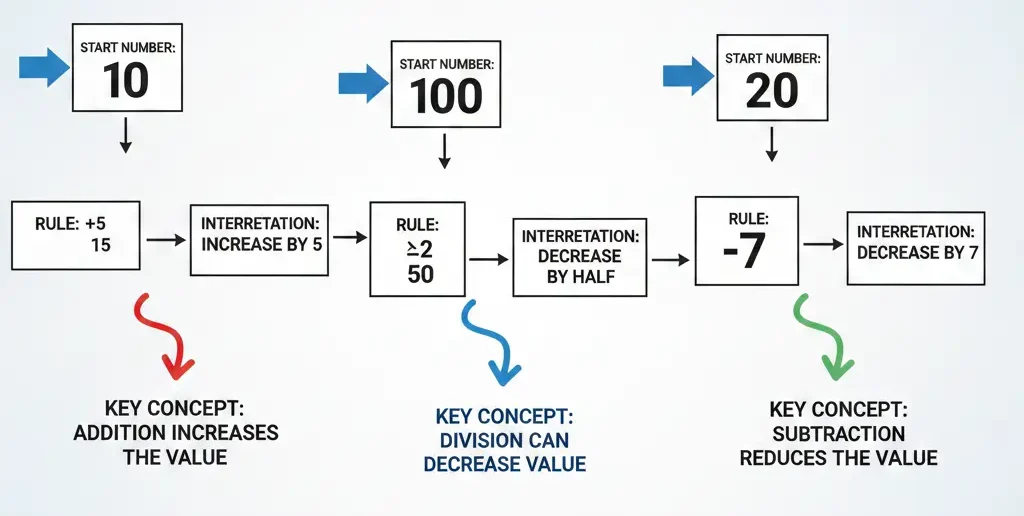
Never use GPT formulas to merge, sort, or calculate. Use native Sheets functions first, then ask GPT to interpret results.
Formula pattern 3: Explaining numeric changes (interpretation)
=GPT(“Explain in simple terms why these values might have changed: “&A2)
From real reporting workflows, this is one of the highest ROI uses of GPT in Sheets—because it saves explanation time without touching the numbers.
Practical formula examples table
| Task | GPT Formula Purpose | Safe? |
| Intent labeling | Classification | Yes |
| Topic grouping | Organization | Yes |
| Summary writing | Interpretation | Yes |
| Calculations | Math | No |
| Forecasting | Prediction | No |
Mistake 1: Writing long prompts in cells
Fix: Reference helper cells to keep formulas readable.
Mistake 2: Expecting consistent phrasing
Fix: Lock outputs as values once reviewed.
Mistake 3: Nesting GPT formulas
Fix: Never chain AI outputs.
Information Gain: The stability tricks most guides ignore
Here’s a practical insight rarely mentioned:
Short, constrained prompts produce more stable outputs than detailed ones.
From repeated testing, adding too much instruction increases variability. Simpler prompts reduce drift.
Stability-focused prompt example
=GPT(“Summarize the main idea of this text in one sentence: “&A2)

Unique section — Beginner mistake most people make
Beginners often treat GPT formulas like Excel formulas—expecting deterministic results. This mindset causes frustration.
In real workflows, GPT outputs should be:
Reviewed
Edited if needed
Then finalized
Once you treat GPT as a drafting assistant, formulas become much more useful.
(FAQs)
Are GPT formulas deterministic?
No. Outputs may vary slightly.
Can GPT formulas replace scripts?
No. They serve different purposes.
Is it safe to use GPT formulas at scale?
Yes, with review and limits.
Why do outputs change?
AI generates probabilistic responses.
Should GPT outputs be cached?
Yes, once approved.
What’s the safest GPT formula use?
Classification and summarization.
Conclusion
GPT for Sheets formula examples work best when they’re simple, constrained, and reviewed by humans. From real experience, the strongest spreadsheets use GPT to explain, label, and summarize—while relying on Sheets for logic and accuracy.
When you respect that boundary, GPT formulas become a productivity multiplier instead of a liability.
Internal link
GPT for Sheets vs ChatGPT: Key Differences, Use Cases & Examples-2026
External link
https://gptforwork.com/help/gpt-for-sheets/gpt-functions/create-gpt-formulas/gpt-formula-examples?